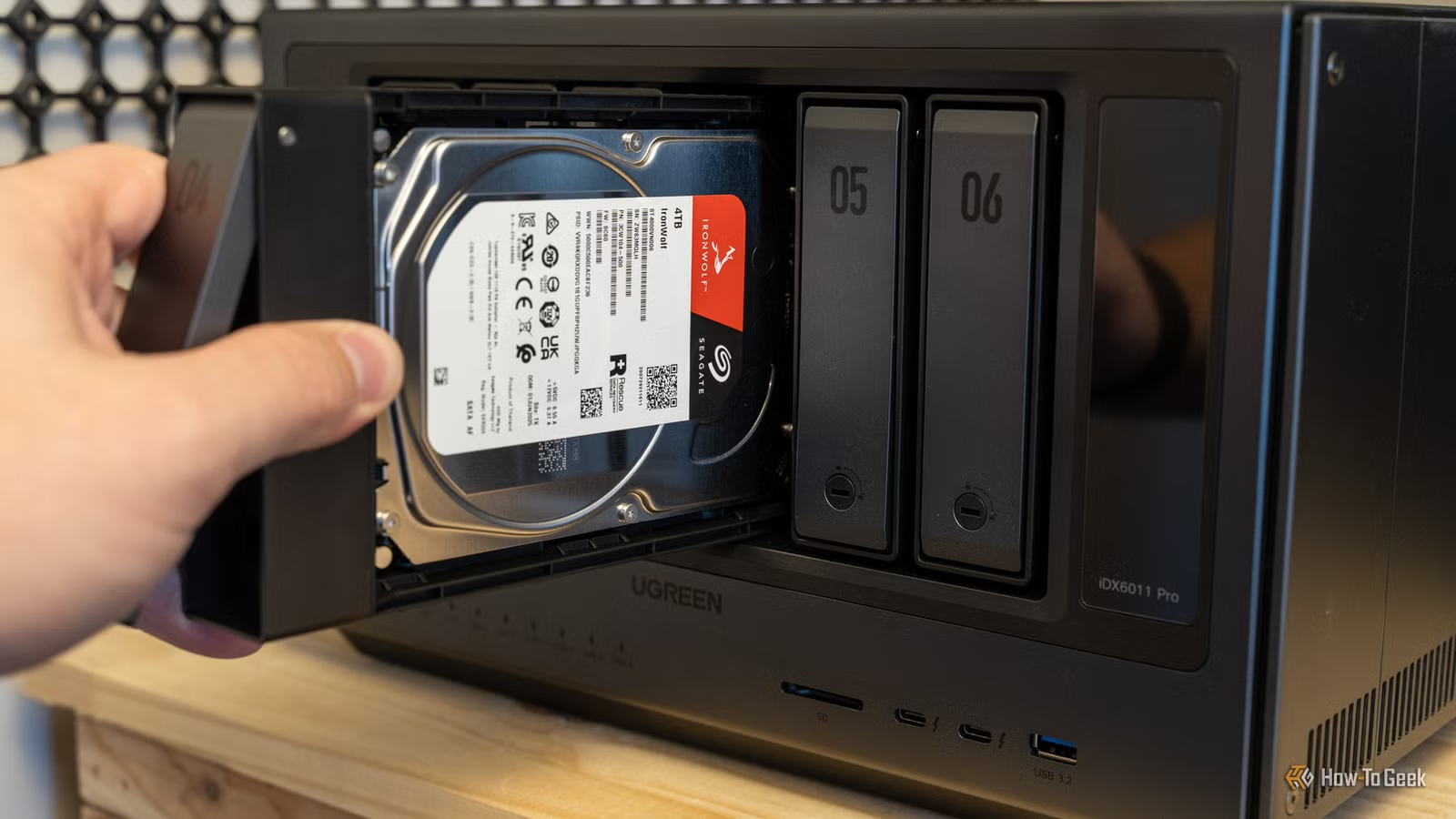

A slow computer can be frustrating, whether you’re working from home, attending online classes, gaming, or simply browsing the web. Over time, computers naturally lose performance due to software clutter, outdated hardware, background processes, and insufficient maintenance. Fortunately, improving your computer’s speed doesn’t always require buying a new device. With the right strategies, you can significantly boost performance and extend the lifespan of your system.
Whether you use Windows or macOS, regular maintenance and a few smart upgrades can make your computer run faster and more efficiently.
If you’re looking for practical technology advice, troubleshooting guides, and the latest tech insights, Techhack.co.uk offers useful resources to help users optimize their devices and solve common computer problems.
Identify What’s Slowing Down Your Computer
Before making changes, it’s important to understand why your computer has become slow. Common causes include:
- Too many startup programs
- Limited storage space
- Outdated software
- Malware or viruses
- Aging hardware
- Running multiple applications simultaneously
- Fragmented hard drives (for HDDs)
- Excessive browser extensions
Using built-in system monitoring tools like Task Manager (Windows) or Activity Monitor (Mac) can help identify applications consuming excessive CPU, memory, or disk resources.
Free Up Storage Space
A nearly full hard drive can noticeably reduce computer performance. Operating systems require free storage to create temporary files and perform routine processes.
Consider removing:
- Unused applications
- Old downloads
- Duplicate files
- Temporary system files
- Large videos you no longer need
Cloud storage or external hard drives are excellent options for archiving files without consuming local disk space.
Disable Unnecessary Startup Programs
Many applications automatically launch every time your computer starts. While convenient, too many startup programs can dramatically increase boot times.
Review your startup applications and disable programs that aren’t essential. This simple adjustment often produces one of the fastest performance improvements without affecting everyday functionality.
Keep Your Operating System Updated
Software updates often include:
- Performance improvements
- Bug fixes
- Security patches
- Driver compatibility enhancements
Installing updates regularly ensures your computer benefits from the latest optimizations released by the operating system developers.
Upgrade to a Solid-State Drive (SSD)
If your computer still uses a traditional hard disk drive (HDD), upgrading to an SSD can dramatically improve overall performance.
Benefits include:
- Faster boot times
- Quicker application launches
- Improved file transfers
- Better system responsiveness
- Reduced loading times
For many users, replacing an HDD with an SSD offers the most noticeable hardware upgrade available.
Add More RAM
Random Access Memory (RAM) allows your computer to handle multiple applications simultaneously.
If you frequently experience slowdowns while:
- Editing photos
- Running virtual meetings
- Gaming
- Working with large spreadsheets
- Opening many browser tabs
Adding additional RAM can significantly improve multitasking performance.
Remove Malware and Viruses
Malicious software often runs silently in the background, consuming valuable system resources.
Perform regular security scans using reputable antivirus software. Microsoft also recommends enabling built-in security features and keeping protection tools updated to help defend against threats.
According to the Microsoft Support website, maintaining updated software and security protections is an important part of keeping Windows systems running efficiently.
Optimize Your Web Browser
Many users spend most of their time inside a browser, making browser performance especially important.
Improve browser speed by:
- Removing unused extensions
- Clearing cache and cookies
- Updating the browser
- Closing unnecessary tabs
- Restarting the browser periodically
Extensions that constantly run in the background may consume considerable memory without users realizing it.
Clean Temporary Files
Temporary files accumulate over time and occupy valuable storage.
Windows Disk Cleanup and Storage Sense, along with macOS storage management tools, can safely remove unnecessary files including:
- Temporary internet files
- System logs
- Cached updates
- Recycle Bin contents
Regular cleaning helps maintain healthy storage performance.
Restart Your Computer Regularly
Many people leave computers running for weeks without restarting them.
A simple restart can:
- Clear temporary memory
- Close background processes
- Install pending updates
- Refresh system resources
Restarting once every few days helps maintain smoother overall performance.
Reduce Visual Effects
Modern operating systems include animations and visual enhancements that consume graphics and processing resources.
Disabling unnecessary animations can improve responsiveness, particularly on older computers with limited hardware capabilities.
Examples include:
- Window animations
- Transparency effects
- Motion transitions
- Visual shadows
These changes may appear minor individually but collectively improve system responsiveness.
Keep Drivers Updated
Hardware drivers allow your operating system to communicate efficiently with components like:
- Graphics cards
- Network adapters
- Printers
- Audio devices
- Chipsets
Outdated drivers can create compatibility problems and reduce performance. Manufacturers frequently release updated drivers that improve stability and efficiency.
Manage Background Applications
Many applications continue running after you’ve closed their windows.
Background programs may include:
- Cloud synchronization tools
- Messaging applications
- Update services
- Game launchers
Limiting unnecessary background processes frees CPU and memory resources for the tasks you’re actively performing.
Check Your Computer’s Temperature
Excessive heat forces processors to reduce their speed to prevent damage.
Signs of overheating include:
- Loud fan noise
- Unexpected shutdowns
- Slow performance during demanding tasks
- Hot exterior surfaces
Cleaning dust from air vents and ensuring proper airflow can significantly improve cooling performance.
Desktop computers benefit from occasional internal cleaning, while laptop users should avoid blocking ventilation openings.
Uninstall Unused Software
Many computers accumulate programs that are no longer needed.
Unused applications consume:
- Disk space
- Background resources
- Update bandwidth
- System registry entries
Regularly reviewing installed software helps keep your system lean and organized.
Consider Hardware Upgrades
If your computer is several years old, hardware upgrades may provide better value than purchasing a completely new device.
Popular upgrades include:
- SSD installation
- RAM expansion
- Graphics card replacement (desktop)
- Processor upgrades (where supported)
Even modest upgrades can extend the useful life of a computer by several years.
Practice Good Maintenance Habits
Long-term computer performance depends on consistent maintenance rather than occasional fixes.
Good habits include:
- Updating software regularly
- Running security scans
- Backing up important files
- Cleaning temporary files monthly
- Restarting regularly
- Organizing storage
- Removing unused programs
Preventive maintenance reduces the likelihood of major performance issues developing over time.
When Is It Time to Replace Your Computer?
Sometimes optimization alone cannot overcome aging hardware.
It may be time to replace your computer if:
- It cannot support current operating systems.
- Essential software no longer runs properly.
- Hardware upgrades are no longer cost-effective.
- Repairs become frequent and expensive.
- Performance remains poor despite optimization.
Newer computers often provide substantial improvements in speed, energy efficiency, and security.
Conclusion
Improving your computer’s performance doesn’t necessarily require expensive upgrades or advanced technical knowledge. Simple actions such as removing unnecessary programs, updating software, cleaning storage, managing startup applications, and protecting against malware can dramatically improve system speed and reliability.
For older machines, adding RAM or upgrading to an SSD often delivers the greatest performance gains. Combined with regular maintenance, these improvements can help your computer remain fast, responsive, and productive for years to come.
- What to Consider When Planning an International Trip
- ymcaeuc.org Wellness and Fitness Programs: Building Healthier Communities Through Active Living
- Can Beginners Start a Dropshipping Business?
- How to Upgrade Hard Drive Without Reinstalling Windows
- Why Gaseping com Is Becoming a Popular Multi-Topic Website